Office license deactivation fix after Windows update – quick guide
Why Office license deactivation pop‑up can freeze your business
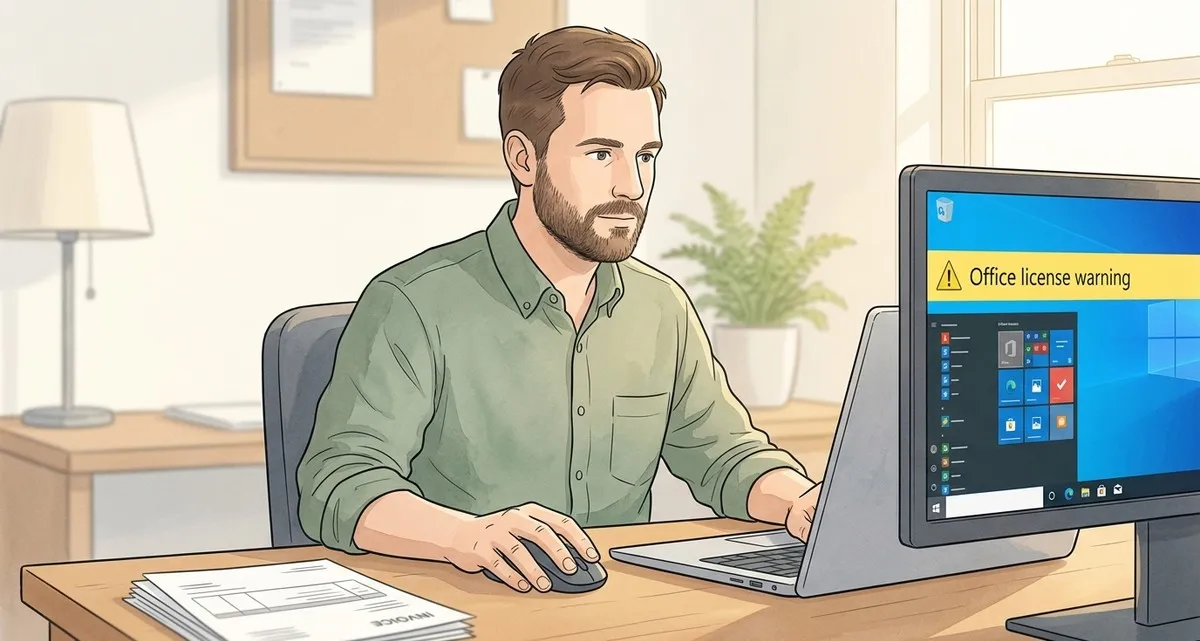
Imagine you’re in the middle of preparing a sales invoice when a bright yellow banner pops up in Word: “Your licence will expire in 5 days – re‑enter your product key.” The same message appears in Excel, PowerPoint and Outlook, and the apps start limiting what you can do. For a bakery that prints daily orders or a dentist that writes patient notes, this interruption can mean lost time and frustrated customers.
The culprit is not a virus or a broken hard drive – it’s a recent optional Windows update that unintentionally deactivates perpetual licences of Microsoft Office 2016 and Office 2019. The good news is that the problem can be fixed in a few steps, and there are ways to stop it from happening again.
What’s really happening?
Microsoft has released (Microsoft, the maker of Windows and Office, has released …) an optional update for Windows PCs that have Microsoft 365 Apps installed but are more than 90 days out of date. The update, identified as KB 5002907, is meant to bring those apps back onto a current update channel. Because Office 2016 and 2019 are already out of support (support ended on 14 October 2025), the update can’t properly verify the old perpetual licences. The result: the activation data is cleared and the software falls into “reduced‑functionality mode,” where you can view but not edit or save documents.
Key points for a small‑business owner:
- The update is optional, not forced automatically.
- It only affects the older, non‑subscription versions of Office.
- Microsoft is not obligated to fix the issue, as the products are out of support.
DIY Office license deactivation fix – step‑by‑step
If you have only a handful of computers, you can resolve the issue yourself. Follow these steps carefully:
Common office activation problem symptoms
-
Gather your product keys
Look for the 25‑character product key that came with your Office purchase. It may be on a sticker on the original box, in an email from the time of purchase, or in the Microsoft account portal under Services & subscriptions. -
Re‑enter the key
- Open any Office app (e.g., Word).
- When the activation banner appears, click Change product key.
- Type the 25‑character key and follow the prompts. The app should confirm successful activation.
-
Roll back the problematic update
- Open Settings → Update & Security → Windows Update.
- Click View update history → Uninstall updates.
- Find KB 5002907 in the list, select it, and click Uninstall.
- Restart the computer.
-
Use System Restore (optional) – System Restore (a Windows feature that can roll your computer back to an earlier state)
If the update does not appear in the uninstall list, you can revert the whole system to a point before the update:- Search for Create a restore point → System Restore.
- Choose a restore point dated before 25 September 2026 and follow the wizard.
-
Verify the fix
Open each Office app again and make sure the activation banner is gone. Save a test document to confirm full functionality.
When DIY isn’t enough
If you manage dozens of computers, have lost the original product keys, or feel uncomfortable rolling back Windows updates, it’s safer to let a trusted IT partner handle the process. A professional can:
- Run a bulk licence re‑activation script without risking data loss.
- Ensure that the rollback does not affect other critical updates.
- Set up a monitoring routine to catch similar issues early.
Prevention checklist – keep your Office running smoothly
| ✅ | Action |
|---|---|
| Disable optional updates | In Settings → Windows Update → Advanced options, turn off “Receive updates for other Microsoft products when you update Windows.” |
| Store product keys securely | Keep a digital copy (e.g., encrypted note) or a physical print‑out in a safe place. |
| Regular health checks | Schedule a quarterly review of all critical software, including Office, to spot potential problems before they disrupt work. |
Our 24/7 Maintenance & Support includes proactive patch management so you won’t be surprised by future updates.
Frequently asked questions
Q: How can I find my missing Office product key after a license deactivation?
A: Check the Microsoft account you used to purchase Office; the key is listed under Services & subscriptions. If it’s not there, you may need to contact the retailer where you bought the licence. If you cannot locate the key, we can help you verify the purchase and decide on the next steps.
Q: Will turning off optional updates affect my Windows security patches?
A: No. Disabling optional updates only affects the Microsoft 365 Apps update that triggered this bug. Security updates for Windows itself remain enabled and will continue to protect your PC.
Q: Should I upgrade to Microsoft 365 to avoid Office license deactivation?
A: For most small businesses, a subscription offers automatic updates, cloud storage, and collaboration tools that older perpetual licences lack. It also removes the risk of licence deactivation caused by Windows updates.
Let IT Move NL keep your Office healthy
Dealing with unexpected licence deactivation can be stressful, especially when you have customers waiting. If you’d rather focus on your core business and leave the technical details to experts, we’re here to help.
Read our guide to Office 365 migration
Contact IT Move NL for a free Office health check. We’ll:
- Verify that all your Office installations are properly activated.
- Roll back problematic updates safely, or apply a clean reinstall where needed.
- Set up proactive patch management so future updates don’t catch you off guard.
- Provide 24/7 Maintenance & Support, so you never have to face a pop‑up alone.
We are an independent IT specialist that can help you, regardless of the software you use.
Give us a call or drop us an email – let’s make sure your Office suite stays a reliable tool, not a surprise roadblock.
Sources:

He/Him · AWS Certified Solutions Architect | Cloud Engineer @ Essent
Cloud Engineer at Essent B.V. with 10+ years of experience in the tech industry. AWS Certified, passionate about serverless architectures, Infrastructure as Code, and DevOps. Proficient in TypeScript, Python, and Terraform. Based in Amersfoort, Netherlands.
STAY IN THE LOOP
// Cloud, AI & DevOps insights — straight to your inbox.
No spam. Unsubscribe anytime.
// Related articles

Need help with your cloud infrastructure?
Our team of experts is ready to help you navigate the complexities of modern cloud architecture.
Get in Touch