Free Second Screen: Turn Your Old TV into a Cost‑Free Monitor
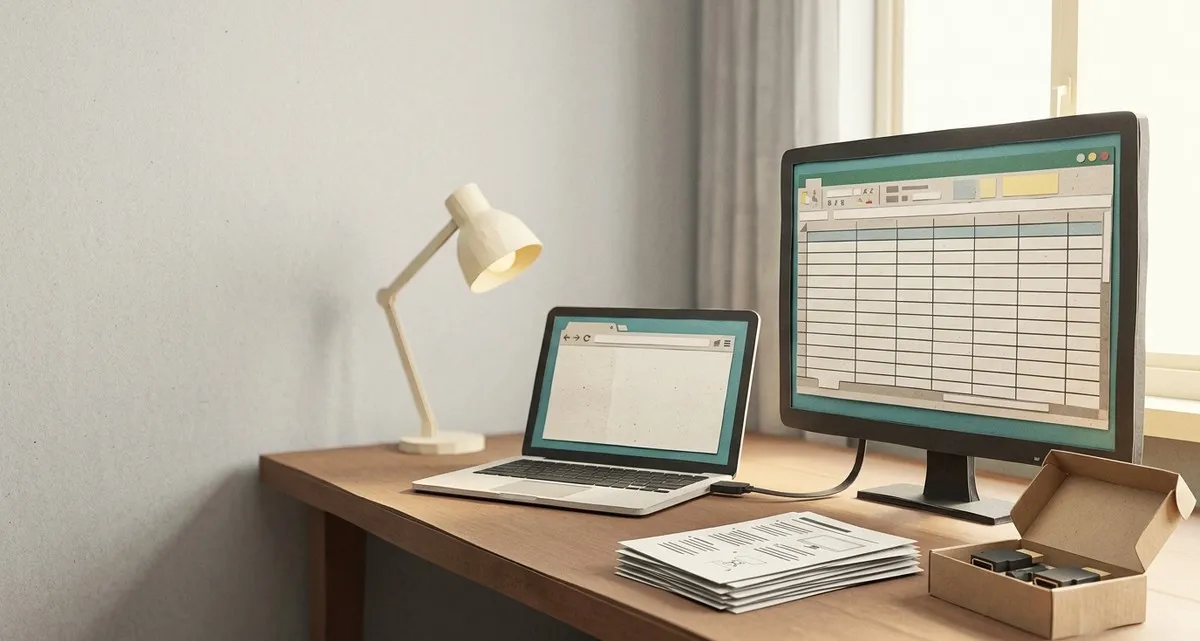
Image generated with AI
This article and its cover image were generated with artificial intelligence (AI).
Introduction
A small business often faces a simple dilemma: the work desk is crowded, the laptop screen feels cramped, and buying a dedicated computer monitor can feel like an unnecessary expense. Yet many owners already have an old television gathering dust in a storage room. Turning that TV into a second screen costs nothing but a few minutes of setup, and it can instantly free up space, speed up data entry, and make multitasking feel natural. In this article we’ll show you how to connect a TV to a Windows, macOS, or ChromeOS computer, tweak the settings for a clear picture, and discover practical ways a larger display can help a bakery, a boutique, or any small‑business operation.
How to Connect Your TV for a Free Second Screen
1. Grab an HDMI cable (or adapter)
The most straightforward method is a standard HDMI cable – the same cable you use for a DVD player or game console. Plug one end into the TV’s HDMI port and the other into the computer’s video output.
If your computer only has a USB‑C, Thunderbolt, or DisplayPort output, you’ll need a small adapter (for example, a USB‑C‑to‑HDMI cable). These adapters are inexpensive and often already sit in a drawer.
2. Choose the right input on the TV
Turn the TV on and use the remote to select the HDMI input you just connected. Most TVs label the inputs as “HDMI 1”, “HDMI 2”, etc. Once selected, you should see a mirror of your desktop appear on the large screen.
3. Wireless options (optional)
If you prefer a cable‑free setup, many modern smart TVs support Apple AirPlay (for macOS) or Google Cast (for ChromeOS and Android‑based browsers). Enable the screen‑mirroring feature on the TV, then select the TV from the computer’s display menu. Keep in mind that wireless casting can introduce a slight delay (known as input lag) and may reduce resolution, which is fine for reference material but less ideal for detailed design work.
4. Verify the connection
- Windows: Right‑click the desktop → Display settings. The TV should appear as “2”.
- macOS: Apple menu → System Settings → Displays. Click Detect Displays if the TV does not show up automatically.
- ChromeOS: Click the clock → gear icon → Device → Displays.
If the TV is recognized, you’re ready to move on to picture quality.
Optimising Display Settings
Match the resolution
A TV’s native resolution is often 1080p (Full HD) or 4K (3840 × 2160). If your computer can output the same resolution, select it in the display settings. If the computer only supports 1080p, set the TV to the same resolution to avoid blurry text.
- Windows: In Display settings choose Scale and layout → Resolution → select the matching value.
- macOS: In Displays choose Scaled and pick the resolution that matches the TV.
- Linux: Use the graphical Displays tool or run
xrandr --output <TV_name> --mode 1920x1080. - ChromeOS: Adjust under Displays → Resolution.
Adjust scaling for readability
TVs are larger than typical monitors, so you may need to increase the scaling factor so icons and text are comfortably sized. A 150 % or 200 % scaling works well for most 1080p TVs.
Turn off picture‑enhancement features
Many TVs have “motion smoothing”, “dynamic contrast”, or “noise reduction” settings that can make text look fuzzy. Switch these features off or set the picture mode to “PC” or “Standard” if the TV offers it. This reduces input lag and sharpens text.
Sound considerations
If you want the TV to act as a speaker, make sure the audio output is set to the TV in the computer’s sound settings. Otherwise, keep using your existing speakers or headphones for clearer audio.
How a Second Screen Helps Your Business
- Faster data entry: Keep a sales dashboard on the TV while entering orders on the laptop, cutting the time spent switching windows.
- Better visual design: View a live preview of flyers or product photos on the large screen while editing on the laptop, reducing costly re‑prints.
- Multi‑tasking during busy periods: Run route‑planning software on the laptop and display a live map of delivery vans on the TV, keeping everyone informed at a glance.
- Emergency backup: If a primary monitor fails, the TV instantly becomes a replacement, avoiding downtime and extra hardware costs.
Faster data entry
Imagine a bakery owner who needs to track daily sales, inventory, and employee schedules. With a single laptop screen, they must constantly switch between spreadsheets and the point‑of‑sale system. A second screen can display the sales dashboard on the TV while the laptop remains dedicated to order entry, cutting the time spent toggling windows.
Better visual design
A boutique that designs its own promotional flyers can keep the design software on the laptop while using the TV to display a live preview of the printed material. The larger canvas makes colour checks and layout decisions quicker, reducing the need for costly re‑prints.
Multi‑tasking during busy periods
A small logistics firm with nine delivery vans can run a route‑planning tool on the laptop and keep a live map of vehicle locations on the TV. The driver‑manager can glance at the map without interrupting the planning workflow, keeping deliveries on schedule.
Emergency backup
If a primary monitor fails, the TV can instantly become a replacement screen, keeping the business running without a costly hardware purchase or a long downtime.
FAQ
Q: Why is a free second screen a good investment for my business?
A: It adds valuable screen real‑estate at no hardware cost, letting you work more efficiently, reduce errors, and keep operations running smoothly even if your main monitor fails.
Q: Will there be noticeable lag when I use the TV as a monitor?
A: Wired HDMI connections have virtually no lag, making them suitable for most business tasks. Wireless casting can add a small delay, which is fine for reference material but may feel sluggish for fast‑moving applications like video editing.
Q: Do I need a special cable for a MacBook with only USB‑C ports?
A: A USB‑C‑to‑HDMI adapter (or a USB‑C cable that includes HDMI) is all you need. These adapters are inexpensive and often already in a home office drawer.
Q: My TV’s picture looks blurry—what can I do?
A: First, match the computer’s output resolution to the TV’s native resolution in the display settings. Then, increase the scaling factor so text is larger, and turn off any “motion smoothing” or “dynamic contrast” features in the TV’s picture menu.
Need Help? – Our Maintenance & Support Service
Setting up a TV as a second screen is simple, but fine‑tuning the picture, ensuring a secure network connection, and keeping the setup reliable can be tricky, especially when you’re busy running a business. IT Move NL’s Maintenance & Support team can:
- Configure the TV‑monitor connection for Windows, macOS, or ChromeOS.
- Optimise resolution, scaling, and colour settings so text is crisp and easy to read.
- Secure the wireless link (if you choose AirPlay or Google Cast) to prevent unwanted access.
- Provide a quick health check to make sure the TV stays in sync with your computer over time.
We offer a free 15‑minute call to discuss your needs and show you exactly how the extra screen can fit into your workflow. Reach out today, and let us help you turn that unused TV into a productivity booster without spending a cent on new hardware. Enjoy the freedom of a free second screen without extra hardware costs.
Sources:

Reviewed by
David Velarde RoblesHe/Him · Content reviewer · AWS Certified Solutions Architect | Cloud Engineer @ Essent
Cloud Engineer at Essent B.V. with 10+ years of experience in the tech industry. AWS Certified, passionate about serverless architectures, Infrastructure as Code, and DevOps. Proficient in TypeScript, Python, and Terraform. Based in Amersfoort, Netherlands.
STAY IN THE LOOP
// Cloud, AI & DevOps insights — straight to your inbox.
No spam. Unsubscribe anytime.
// Related articles
Need help with your cloud infrastructure?
Our team of experts is ready to help you navigate the complexities of modern cloud architecture.
Get in Touch